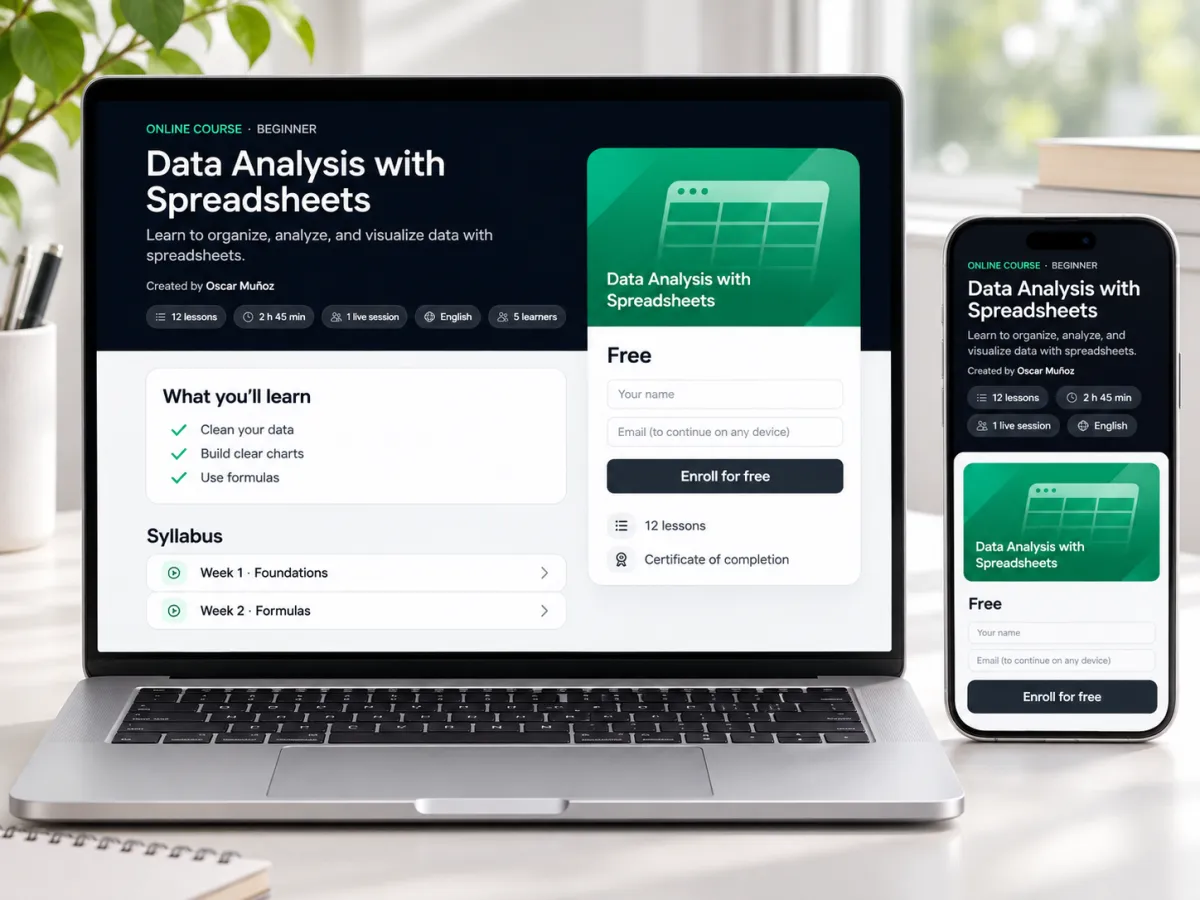
A public course page
Share one link. The page shows what people will learn, the syllabus and free preview lessons. They enroll with their name and start right away, at their own pace.
Video lessons, real tests, in-person sessions with check-in and a certificate at the end. Describe what you teach and the AI assistant drafts the whole course while you watch.
An LMS, a quiz tool, a sign-in sheet and a certificate generator. Four logins that never talk to each other.
Eight kinds of lesson
Mix them freely inside modules. Each type has a handful of options, not a wall of settings.
Upload your own file, or link YouTube, Vimeo or an mp4.
Lectures and podcasts that remember where the learner stopped.
A PDF deck, or Google Slides, Canva and PowerPoint Online.
Write it in the editor, or let the AI assistant draft it.
Worksheets, templates and code to download.
Bring in an interactive page from another tool.
A real FormRead test: online or on paper, graded for you.
Only in FormReadIn person, online or hybrid, with check-in and attendance.
Only in FormRead1 Build
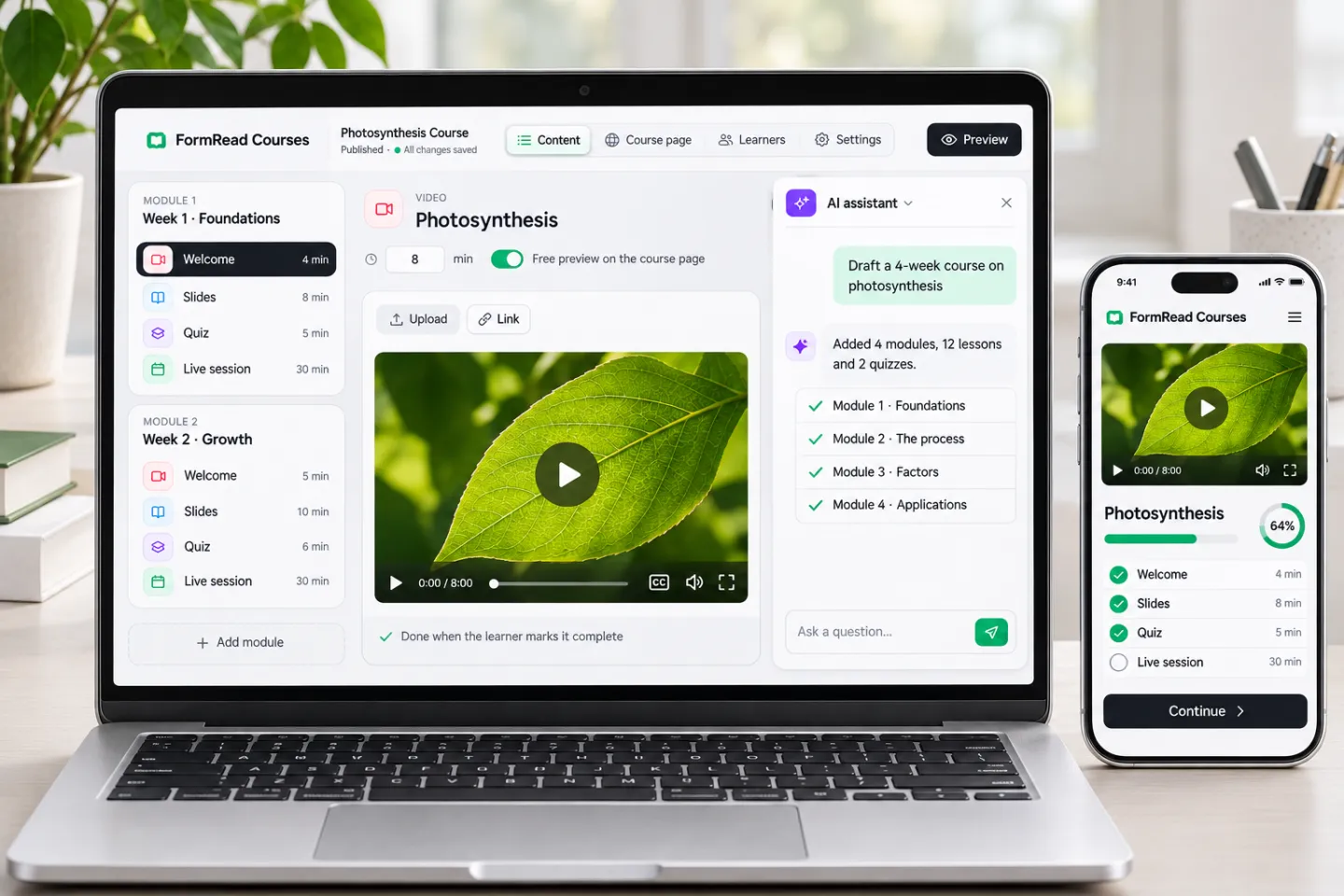
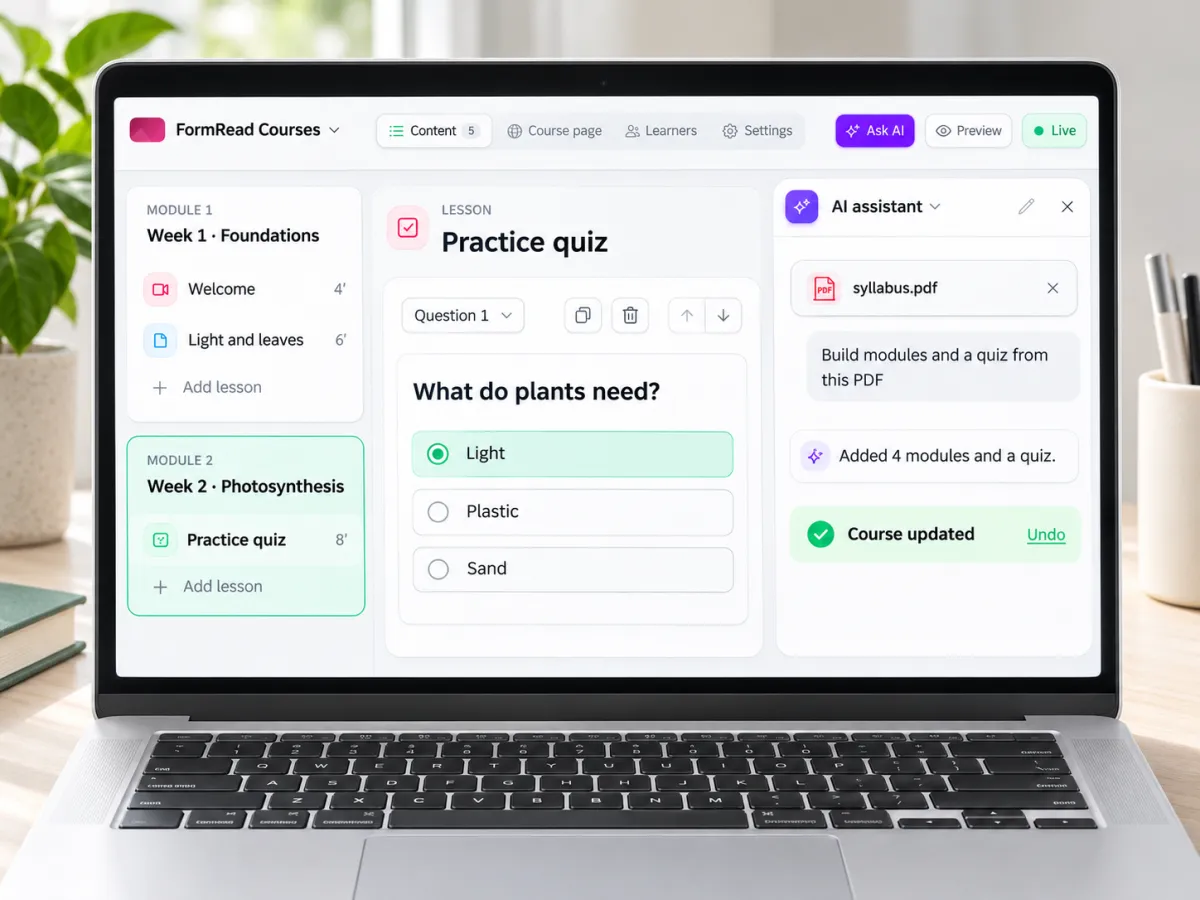
The AI assistant sits next to the editor. Give it a topic, a syllabus or a PDF and it plans the modules, writes the readings and creates the quizzes while you watch.
2 Learn
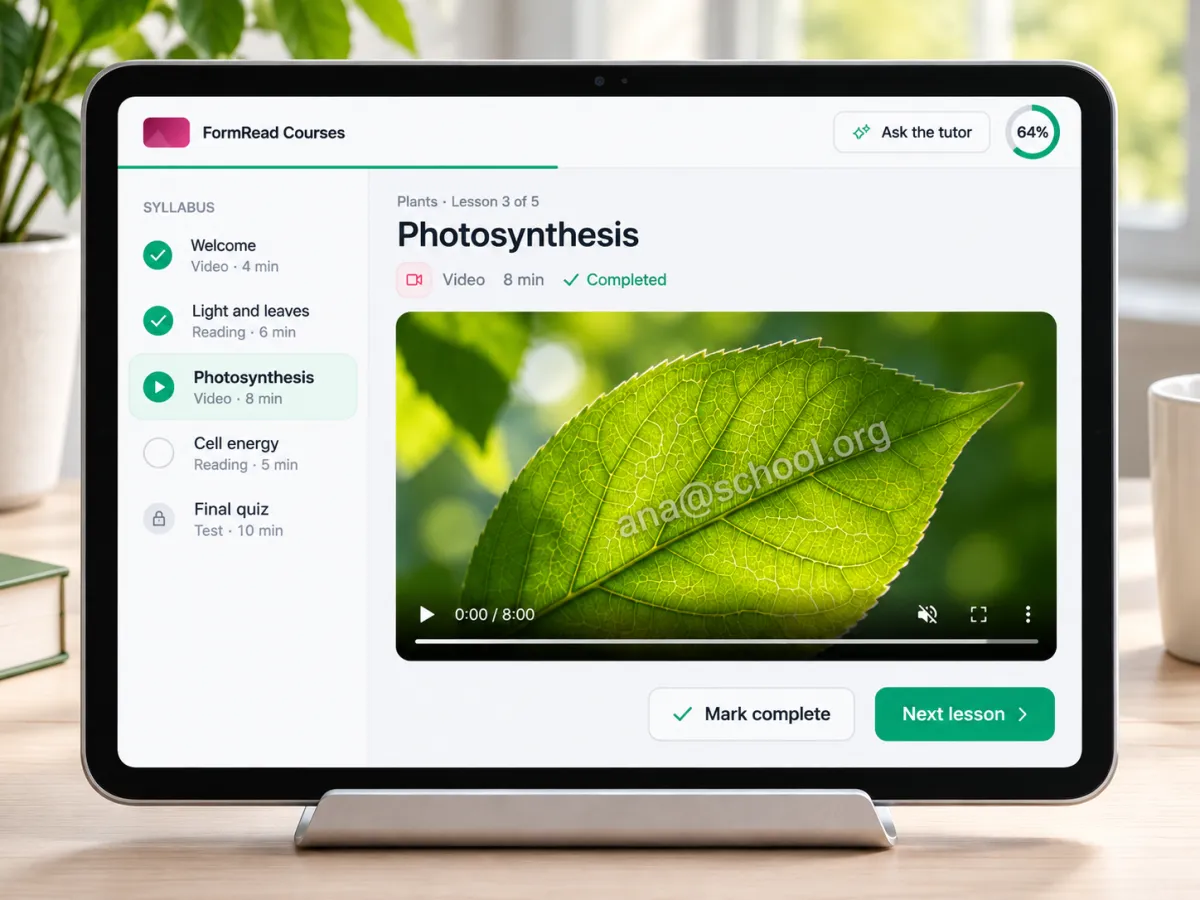
Learners open a link and continue where they left off, on a phone or a laptop. No account to create and no app to install.
3 Meet
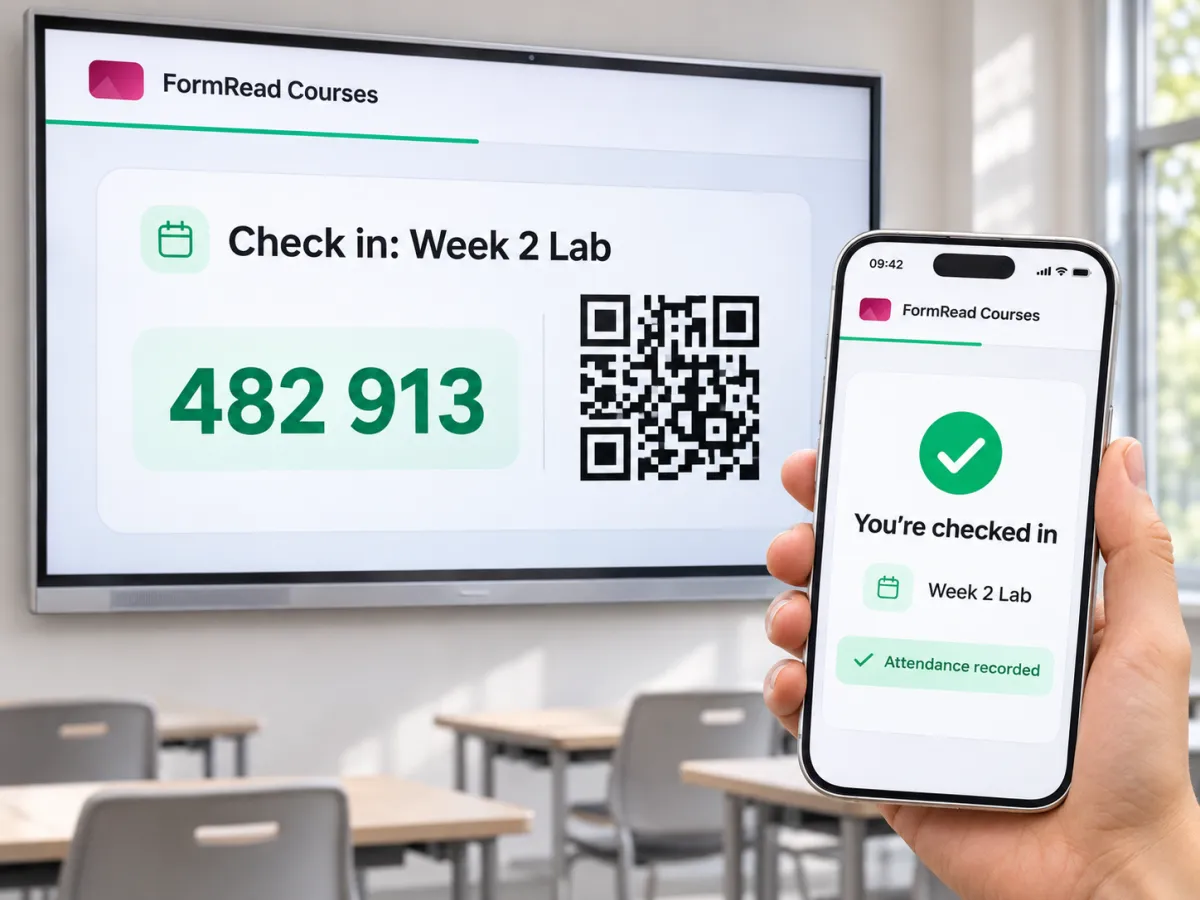
In-person, online and hybrid sessions are lessons with a date, a place and a check-in. Put a 6-digit code and a QR code on the projector, and learners check in from their phones.
4 Test
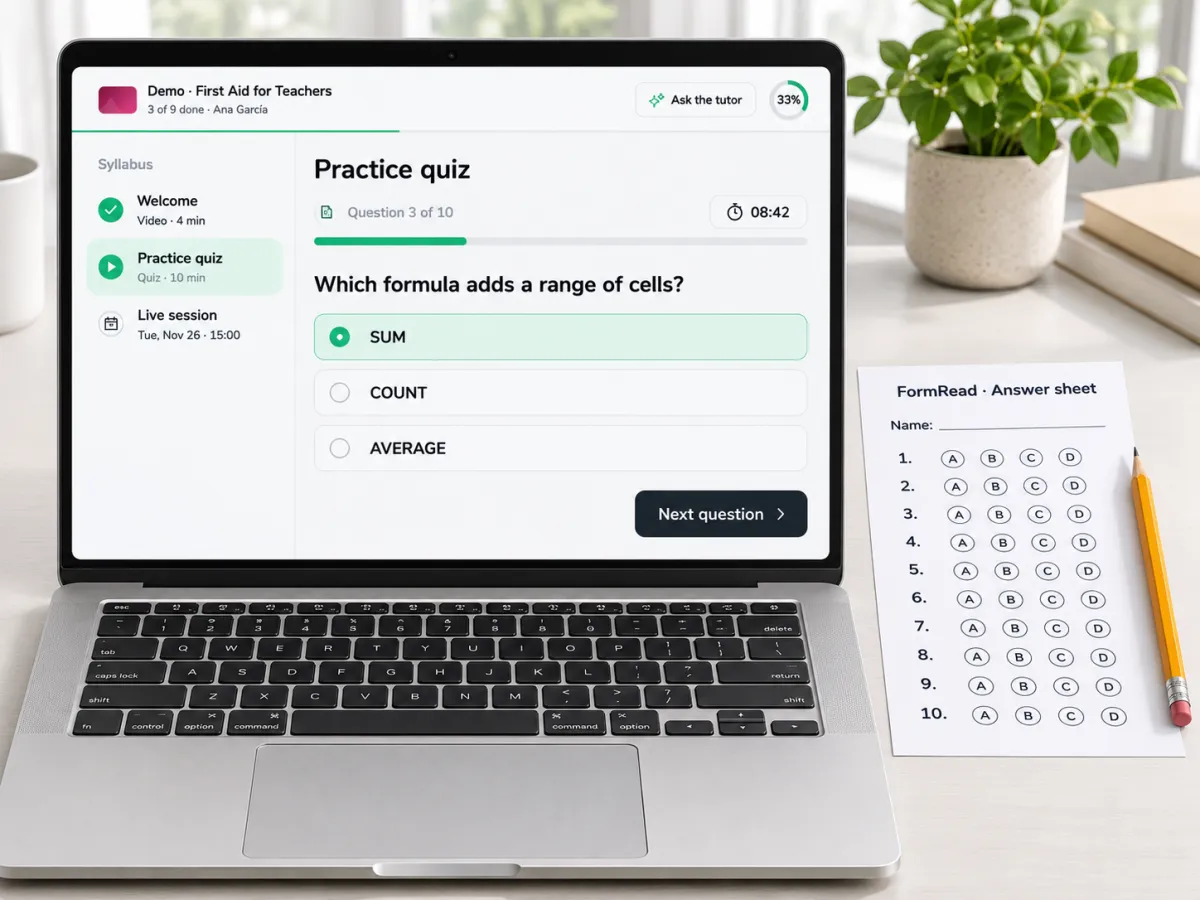
A test lesson is a full FormRead test, not a quiz widget. Learners take it online, or you print it as a bubble sheet and scan the answers.
5 Certify
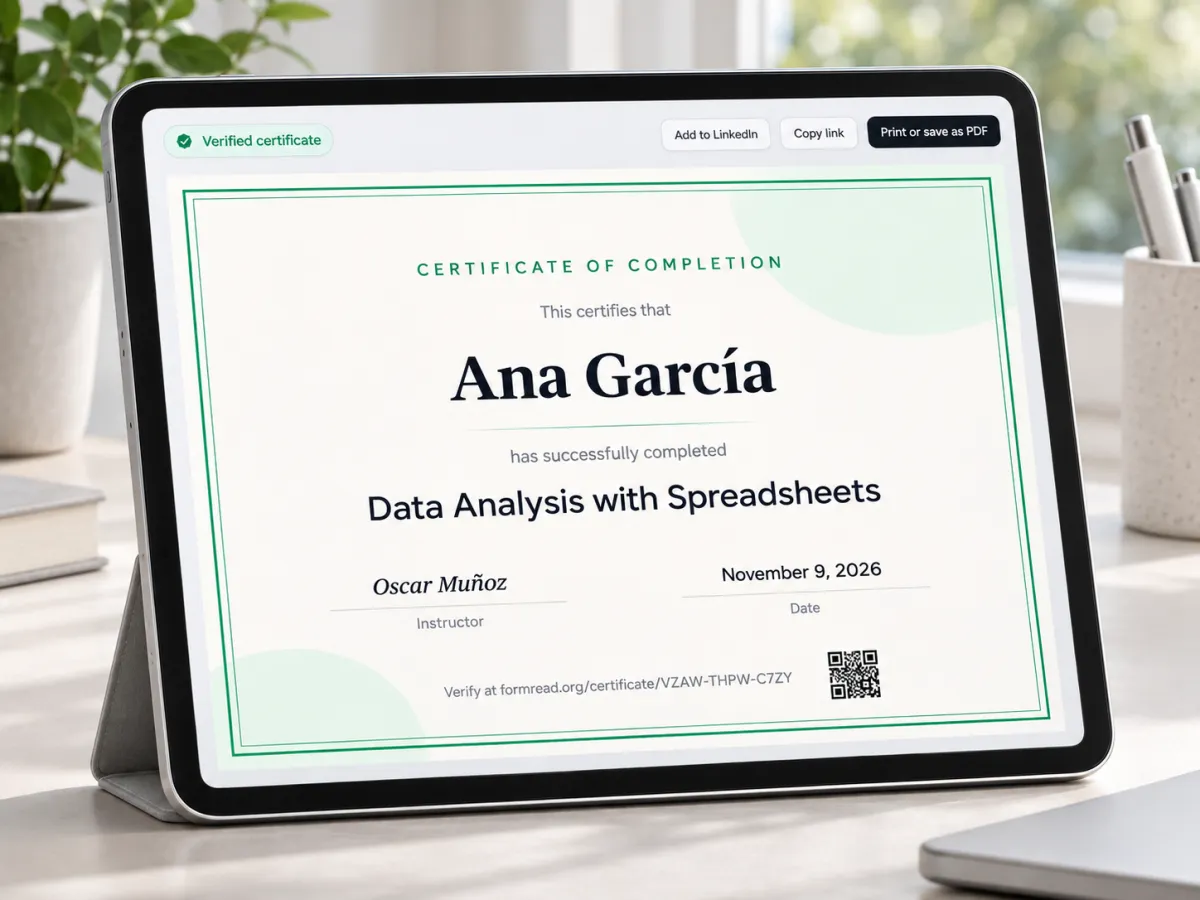
When a learner finishes every lesson, the certificate is issued on its own, with a public link that proves it is real.
One record per learner
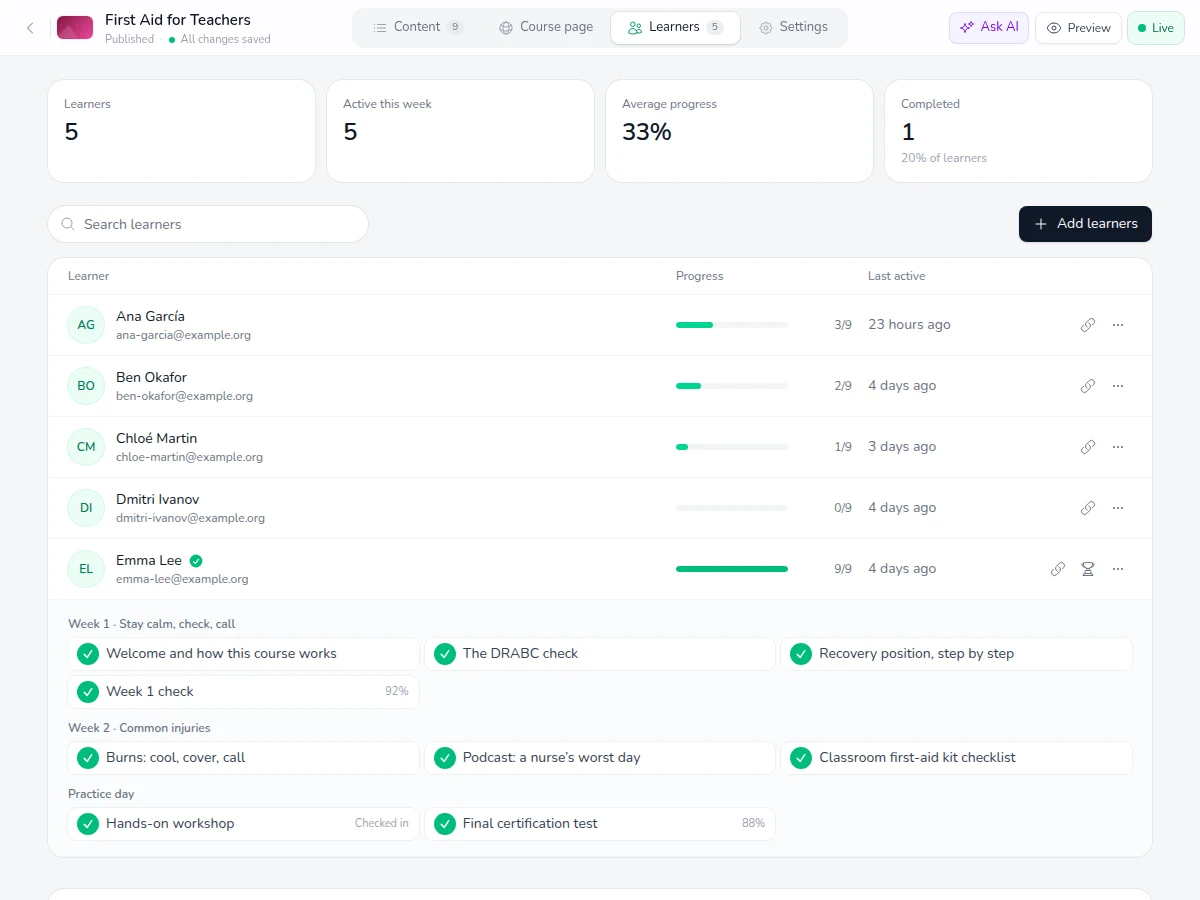
Other tools leave you joining three exports in a spreadsheet. Here you open a learner and see every lesson, test score and check-in.
Two ways to fill a course
Share one link. The page shows what people will learn, the syllabus and free preview lessons. They enroll with their name and start right away, at their own pace.
Attach a class from Attendance and its roster becomes the learners. New students are picked up on their own, and session check-ins go straight to class attendance.
Training a team or a private group? Keep the course private, add people by email and each one gets a personal link.
Protected media
Uploads are private by default. Here is exactly what the player does, and what no web player can do.
Private files
Videos, audio, slides and files are never handed out as public links.
Links that expire
Each learner gets a personal link that stops working after a few minutes.
No download button
No download, cast or picture-in-picture in the player.
A moving watermark
The learner's name moves across the video, in full screen too.
To be clear: someone determined can still record their screen. The watermark shows whose copy it was.
Run the unit your class is already taking: lessons at home, sessions in the room, the exam on paper. Attendance and grades stay with the class.
Onboarding, compliance and workshops with a pass mark, a record of who attended and a certificate for the file.
Publish a free course with its own page and a certificate people can share. No website to build first.
Type the topic or attach your syllabus. The AI assistant drafts modules, readings and quizzes.
Add your videos and slides, schedule the sessions and pick who can join.
Share the link or attach your class. Progress, scores and attendance fill in as people learn.
Courses uses the same tests, classes and answer sheets as the rest of your account, with no extra fee.
No. Courses is included in every FormRead plan, with no per-course or per-learner fee. Only AI work (the assistant that builds the course and the optional tutor for learners) uses AI credits. Uploaded media counts toward your plan's storage.
No. Learners join with their name, and an email if they want to continue on another device. Each one gets a personal link. Students of an attached class are added for you.
Yes. Attach a PDF, a syllabus or your notes and the assistant builds modules, readings and quizzes from them, staying faithful to your material. You see each change in the editor and can undo it.
On the day, open check-in for the session. FormRead shows a 6-digit code and a QR code to put on the projector. Learners enter the code or scan the QR from the lesson, and the lesson is marked complete. If the course is attached to a class, they are also marked present in class attendance.
Yes. Tests in a course are FormRead tests, so the choice questions can be printed as a bubble answer sheet. Scan the sheets with FormRead and the answers come back as graded attempts.
Uploaded videos, audio, slides and files are private. Each learner gets a personal link that expires after a few minutes, the player has no download button, and the learner's name moves across the video as a watermark. This stops casual copying. Like any web player, it cannot stop someone from recording their screen.
Not inside FormRead today. Enrollment is free: open to anyone with the link, or private for the learners and classes you choose.
Yes. Attach an Attendance class and its students become the learners, or add people by email and send each one a personal link. A private course is not open to anyone else.
Start from a sentence or from your own syllabus. Publish when it looks right.
Included in every FormRead plan. No per-learner fee. Only AI uses AI credits.