Roll call
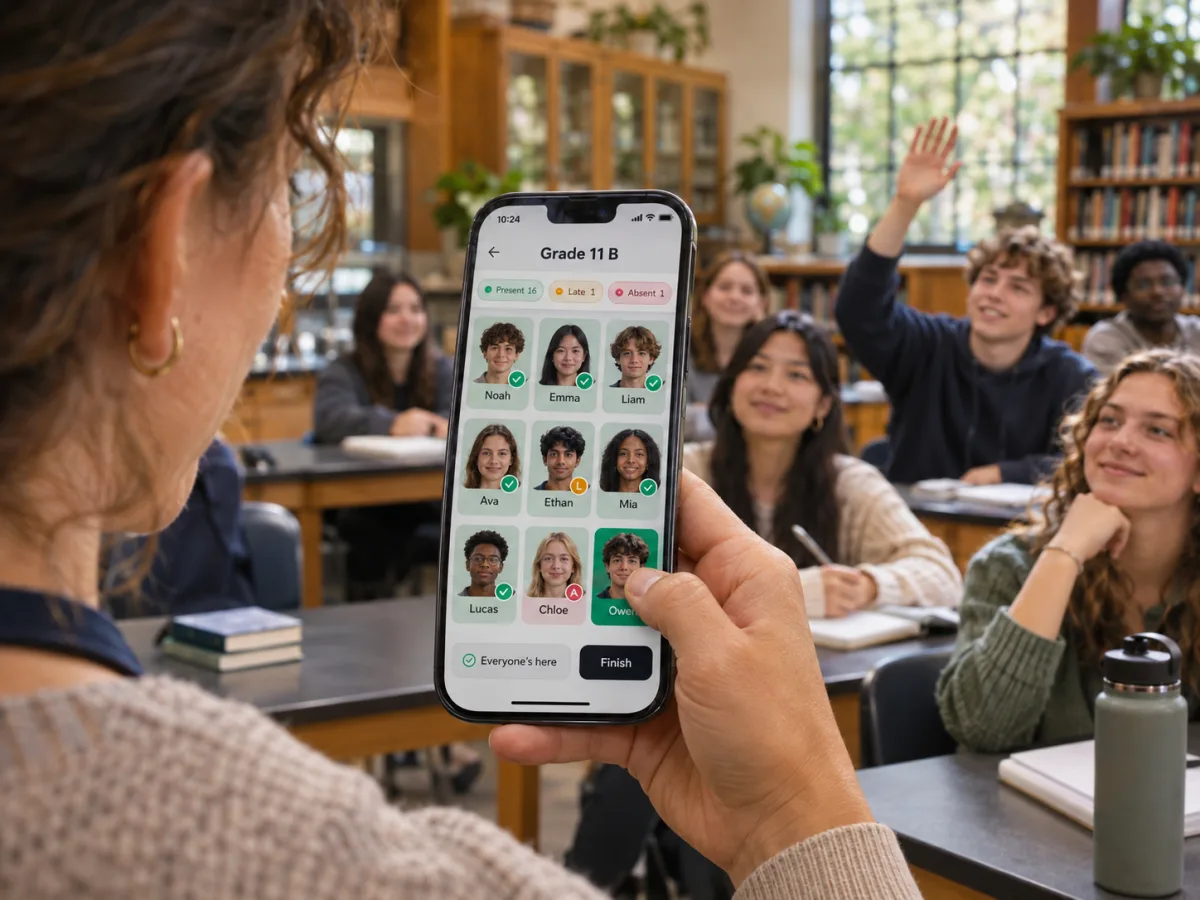
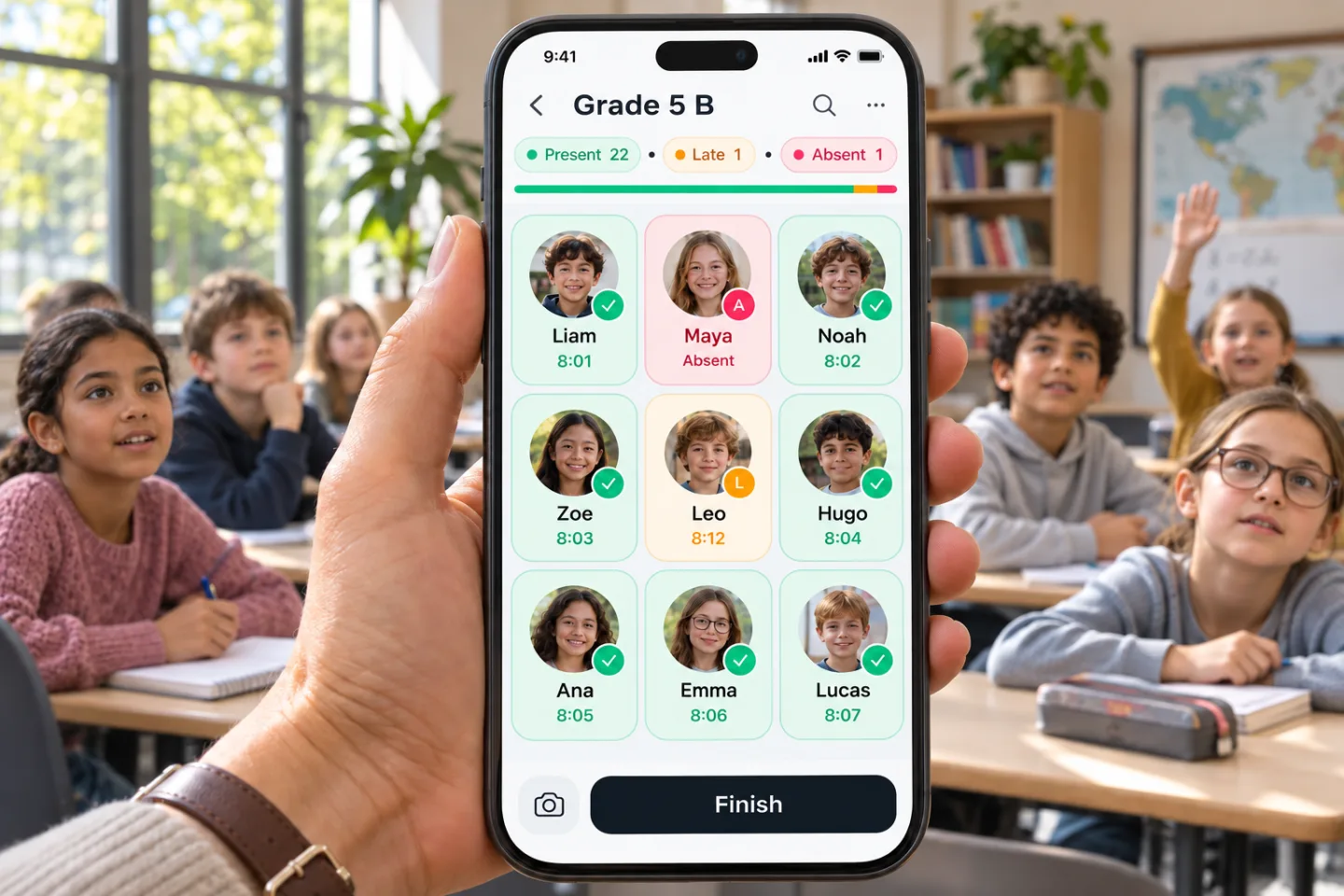
Tap a photo to mark present, absent or late. Start with "Everyone's here" and fix the few who aren't.
Roll call on your phone, a face scan of the whole room, or a check-in tablet at the door. Arrivals, exits and late marks are recorded for you, with reports you can export.
Three ways, one roster
Every method writes to the same attendance, so you can start with a kiosk at the door and fix the last two students by hand.
Tap a photo to mark present, absent or late. Start with "Everyone's here" and fix the few who aren't.
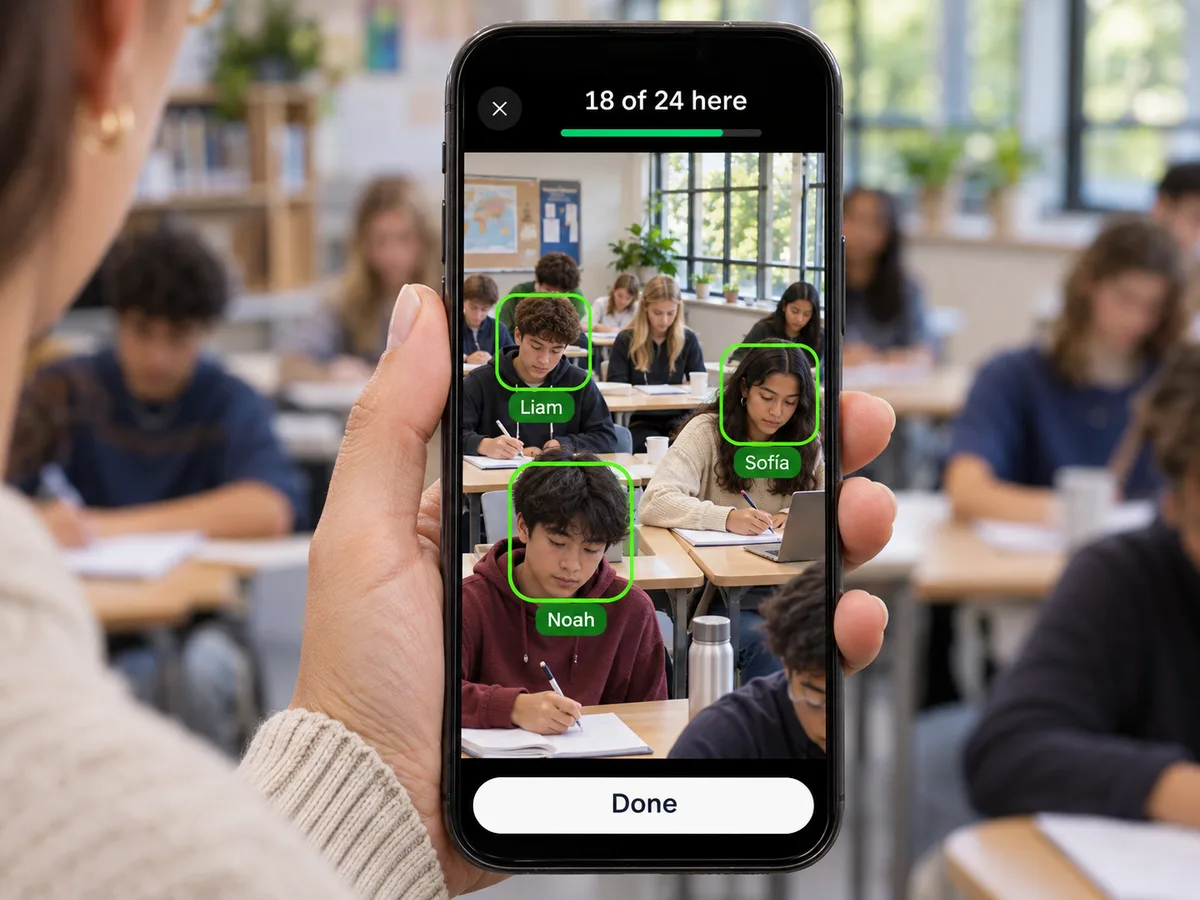
Point your phone at the room. Several faces are recognized at once and marked as they are found.
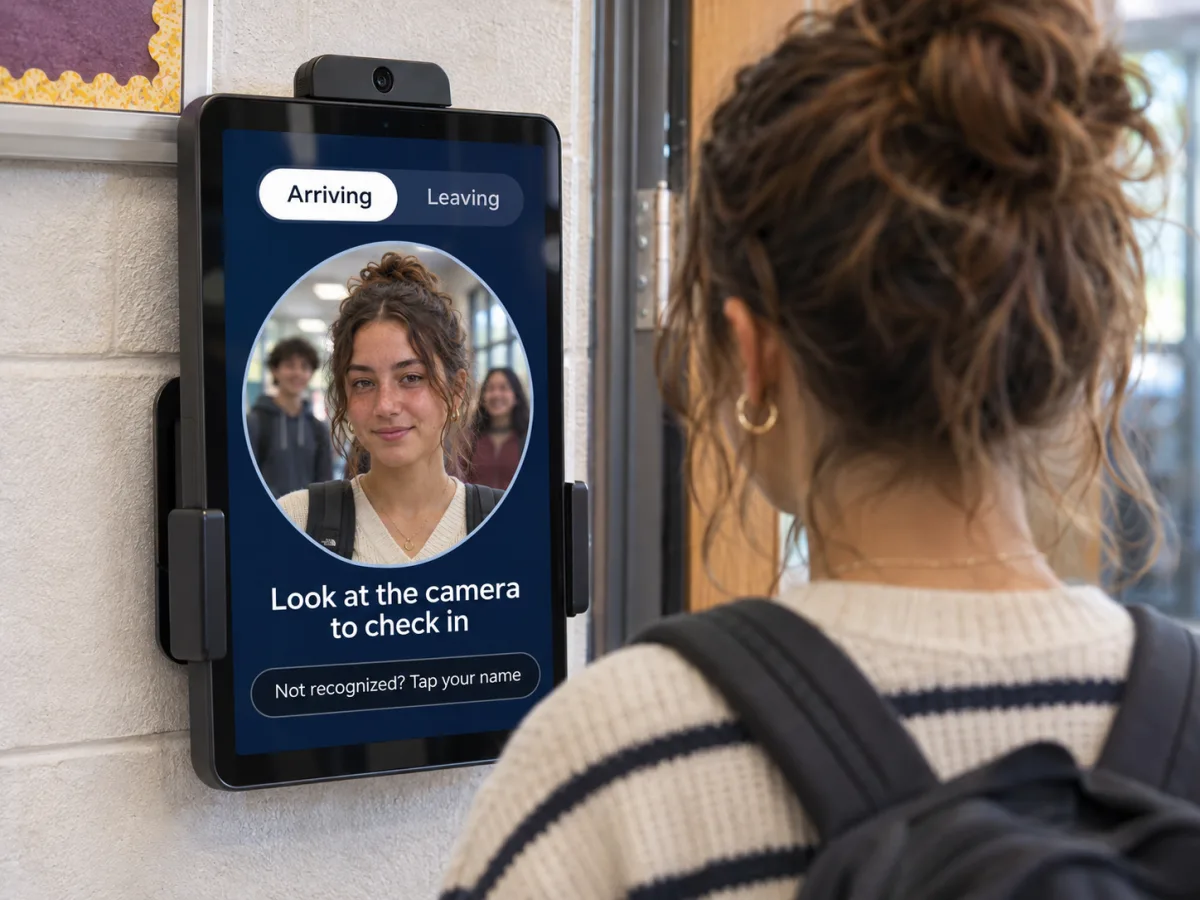
Put a tablet at the door. Students look at it to check in and out, like a time clock.
Roll call
The roster fills the screen with student photos. Teachers recognize faces faster than they read names.
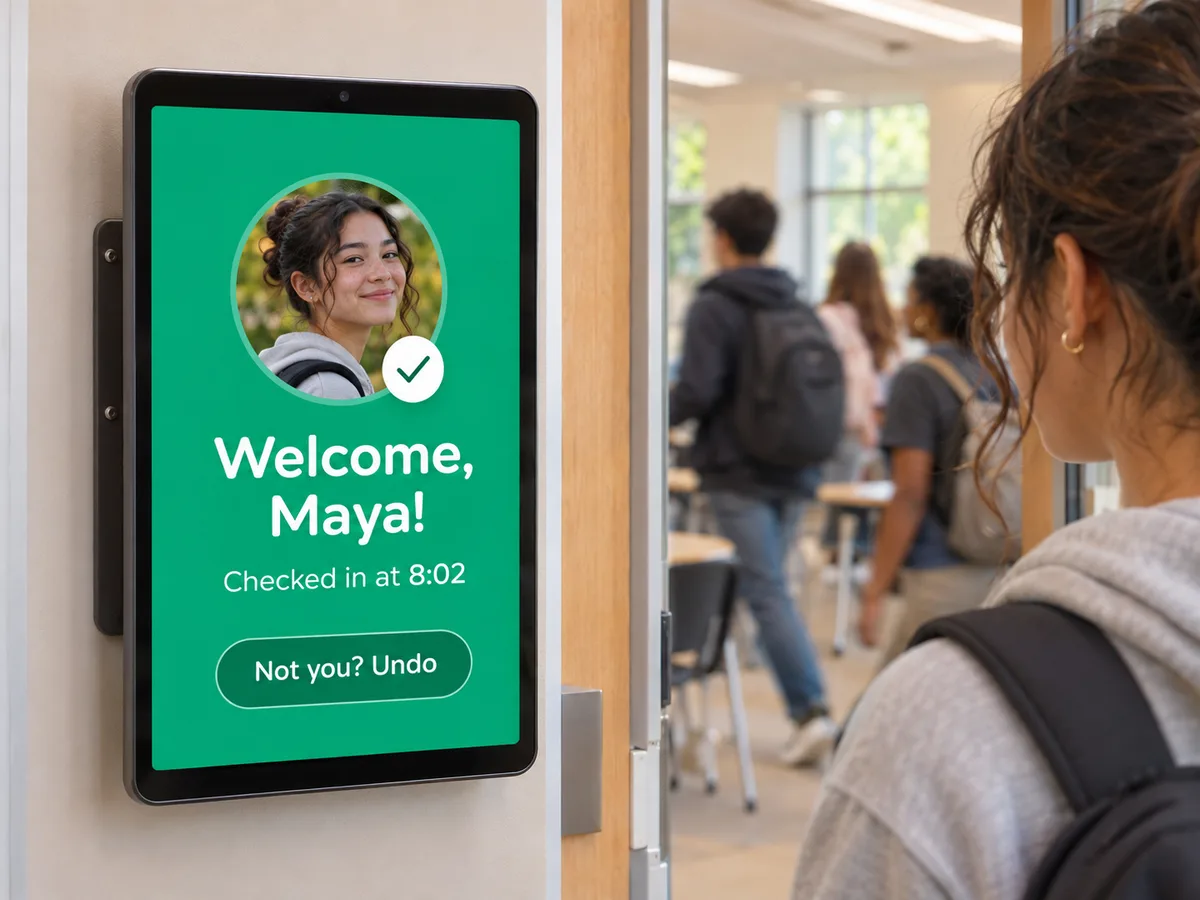
Check-in kiosk
Open the kiosk link or scan its QR code, then leave the tablet by the door. Students check themselves in while you start the lesson, and your roster updates live.
Hands-free
Look, blink, done. A green screen shows the name, the time and "Late" when it applies.
Arriving and leaving
Record exits too, so you know who left early and who came back.
Photo-proof
A blink or small head turn is required, so a photo cannot check anyone in.
Tap your name
Students who are not recognized pick their name. You confirm those check-ins.
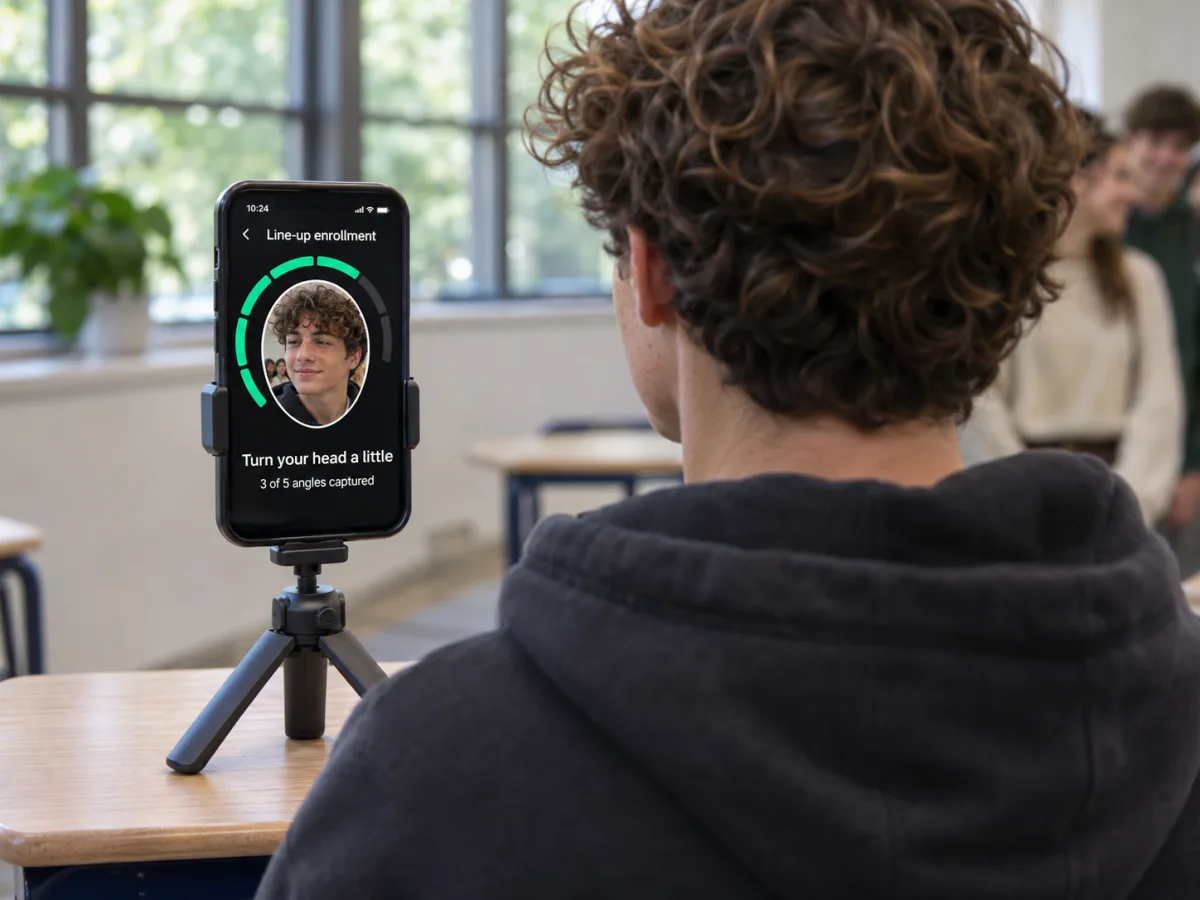
Line-up enrollment
No class list yet? Students come to the camera one at a time, and the roster builds itself.
The student looks at the phone and turns their head a little. Five angles are captured in a few seconds.
You type the name, or pick it if the student is already on the list.
Next student. If a face is already enrolled, FormRead tells you before saving.
Prefer a list? Paste names from a spreadsheet, enroll faces later, or upload photos instead.
Schedules
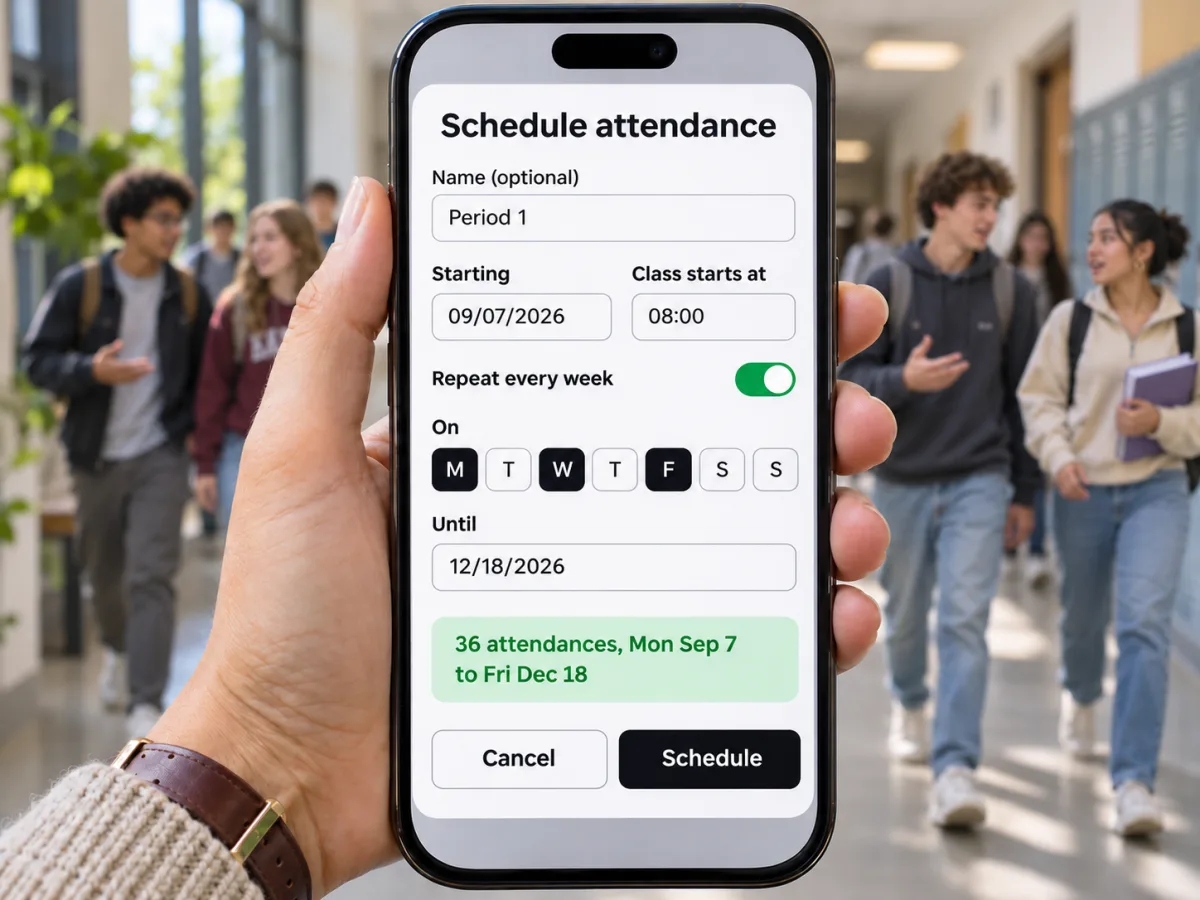
Schedule an attendance once, or repeat it every week on the days you teach. It opens on time and late marks count from the scheduled start.
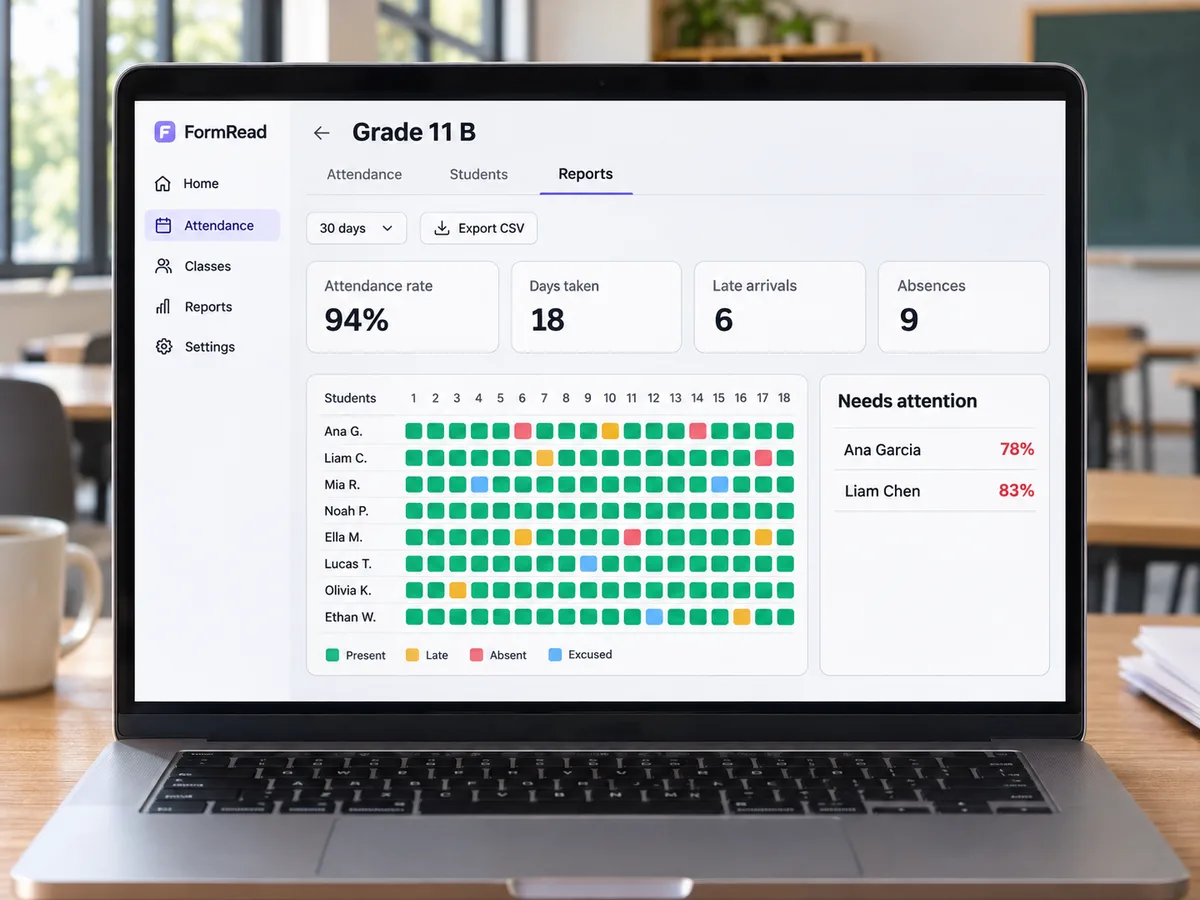
Reports
Every class gets a student attendance tracker that keeps itself up to date.
Privacy first
Face data of students is sensitive. FormRead follows data protection principles: consent, minimal data and deletion on request.
Face enrollment is opt-in per student and records who gave consent and when.
Only an encrypted numeric template is kept. No video, no camera frames, no face gallery.
Stored templates never leave FormRead. Kiosks and phones send the template of the face in view and get back a name.
Remove a student's face data in one click. It is also deleted with the student.
Every mark shows how it was made and can be changed. Name check-ins at the kiosk wait for your review.
Face check-in is never required. Students without face data, or whole classes, use roll call, and nothing else changes.
Give it a name, a room and the minutes after which students count as late.
Paste a list, pick students from your other classes, or enroll them in a line-up.
Tap, scan or open the kiosk. Reports fill in as you go.
The same account runs your paper tests, online exams and attendance, with no extra fee.
No. Roll call and face scan run on your own phone or laptop in the browser. For the kiosk, any tablet or phone with a front camera works: open the kiosk link, tap Full screen and leave it by the door.
Point your phone at the room and move it slowly. Several faces are recognized in the same view and each one is marked as it is found. Anyone not recognized stays unmarked so you can tap them by hand.
The kiosk asks for a blink or a small head turn before it checks anyone in, which a printed photo or a picture on a phone cannot do. Every check-in shows the student's name and photo with a "Not you? Undo" button, and the teacher sees how each mark was made.
Nothing is guessed. The student can tap their name on the kiosk, and that check-in is flagged for the teacher to confirm. Teachers can always switch to roll call and mark anyone by hand.
Only a numeric face template, encrypted, plus a small photo for the roster. No video and no camera frames are kept. Templates are matched on FormRead's servers and never sent to the kiosk, the teacher's phone or any third party.
Yes. Face enrollment cannot start until the teacher records who gave consent. Face data can be deleted for any student at any time, and it is removed when the student is deleted. Students without face data are simply marked by hand.
Yes. Take as many attendances a day as you need, for each period, morning and afternoon, or arrival and departure. Schedule them once or repeat them every week on the days you choose.
No. Attendance is included in every FormRead plan, with no per-student or per-device fee.
Create your class tonight. Roll call works right away, and face check-in is ready once your students are enrolled.
Included in every FormRead plan. No per-student or per-device fee.